
ZATCA e-invoicing in Odoo works when the data is right before the invoice exists. In Phase 2, a B2B tax invoice is cleared by ZATCA's Fatoora platform before it reaches the buyer, so a missing building number or a wrong buyer ID now stops the sale at the last step. This guide shows the quote-to-invoice flow we set up on Odoo, with or without Bitrix24 as the CRM, and the daily routine that keeps rejections near zero.
Key takeaways
- Wave 25 is broad. ZATCA's 25th wave covers taxpayers whose VAT-able revenue exceeded SAR 187,500 in any year from 2022 to 2025, with integration due by 1 February 2027.
- Fix data at the quote, not at the invoice. VAT number, Commercial Registration, district and building number belong on the customer record before the first quotation is sent.
- Two flows, one routine. B2B tax invoices go through clearance; B2C simplified invoices are reported. Both need someone who clears the response queue every day.
- Test in order: Sandbox, then Simulation on a copy of your database, then Production. Once a production invoice is submitted, the mode cannot be switched back.
Who has to integrate with Fatoora, and by when?
ZATCA rolls out Phase 2, the Integration Phase, in waves. On 24 July 2026 it announced the criteria for the 25th wave: all taxpayers whose revenues subject to VAT exceeded SAR 187,500 during 2022, 2023, 2024 or 2025. ZATCA will notify each targeted taxpayer directly, and their e-invoicing solutions must be integrated with Fatoora by 1 February 2027 (ZATCA announcement).
SAR 187,500 a year is a low bar, so this wave reaches well into small and mid-sized companies. Many of them run sales on a CRM and invoices on whatever accounting tool they started with. That split is where Phase 2 projects get stuck.
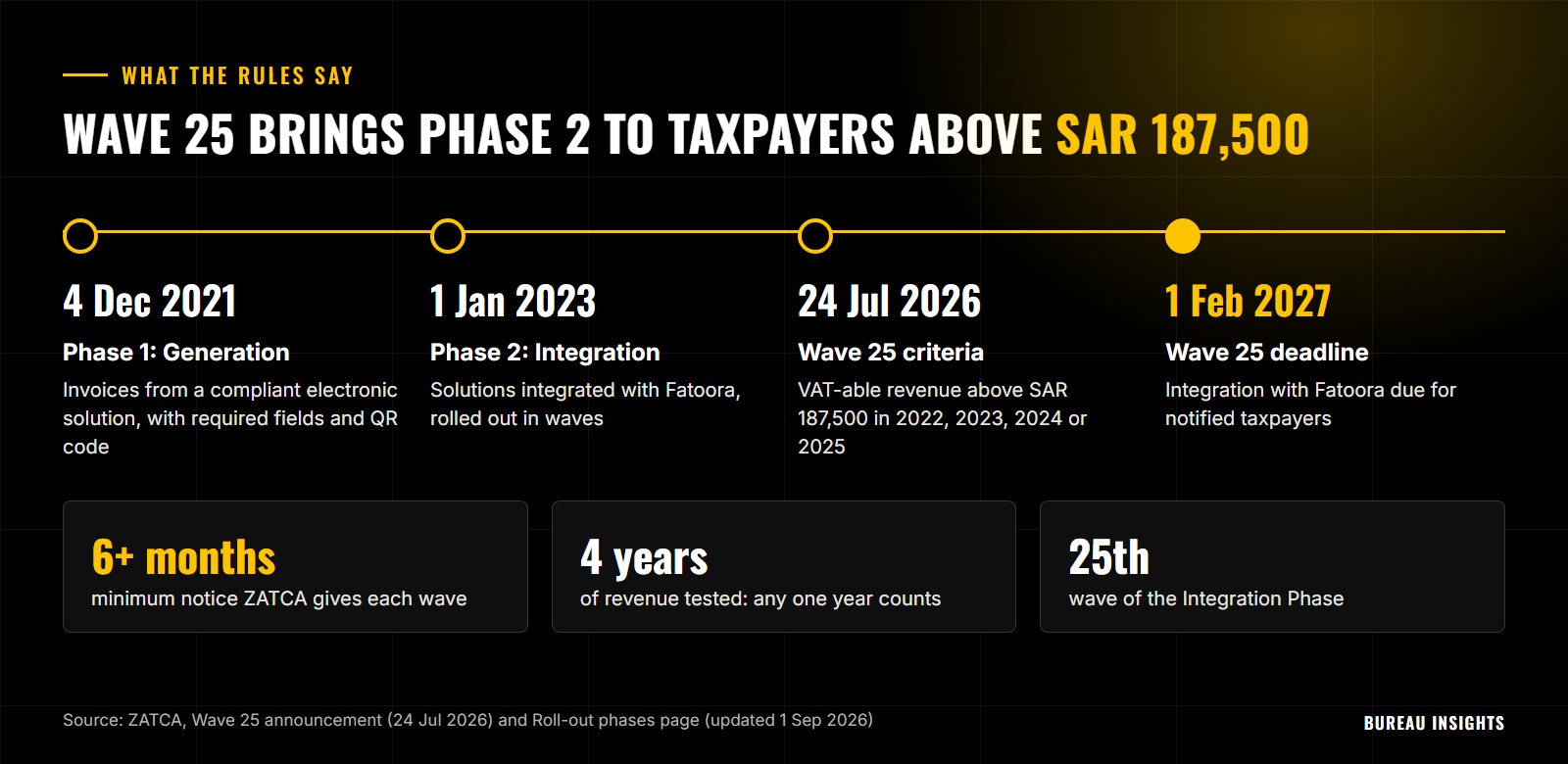
As of November 2026, ZATCA's roll-out page states that each wave is told at least six months before its integration date. If you received a notification, the clock is already running. If you haven't, check the revenue test above against your VAT returns rather than waiting.
What changes between Phase 1 and Phase 2
Phase 1, the Generation Phase, has applied since 4 December 2021: invoices must come from a compliant electronic solution, with the required fields and a QR code. A scanned or copied paper invoice does not count as an electronic invoice (ZATCA, What is e-invoicing).
Phase 2 adds three things: your solution is integrated with Fatoora, invoices are produced in a specific format, and extra fields are required. In Odoo terms, the Odoo 19 Saudi Arabia documentation describes it like this:
- B2B tax invoices use clearance. The invoice is sent to ZATCA's API and must be accepted before it is legally valid. An invoice with a related contact, such as an invoicing address, goes to the clearance API.
- B2C simplified tax invoices use reporting. Odoo generates the QR code and then reports the transaction to Fatoora's reporting endpoint.
- Every submitted invoice keeps its evidence. A UBL 2.1 XML file is generated, sent and stored in the chatter with the PDF. Both are permanently attached and cannot be deleted.
- No quiet edits. A ZATCA-submitted invoice can be reset to draft only in Sandbox or Simulation mode. In Production, corrections go through credit or debit notes with a ZATCA-approved reason.
- Arabic is mandatory on tax invoices, simplified tax invoices and their credit and debit notes. Bilingual Arabic and English is allowed.
The consequence for operations is simple. In Phase 1 a wrong field was an untidy invoice. In Phase 2 it is a rejected invoice the customer cannot receive.
Where the quote-to-invoice flow breaks
Rejections usually trace back to data that should have been captured earlier: at lead qualification, at the quote, or when the order was confirmed. The table maps each step to what must be true before the invoice is created.
| Step | Where it happens | What must be captured | Owner | Why ZATCA cares |
|---|---|---|---|---|
| Qualified lead becomes a customer | CRM (Bitrix24 or Odoo CRM) | Legal name, VAT number, Commercial Registration Number, full address with district and building number | Sales rep | Buyer details on a B2B tax invoice are checked at clearance |
| Quotation sent | CRM or Odoo Sales | Correct price list, 15% VAT, zero-rated or exempt tax per line; discounts on a taxed line | Sales rep, checked by sales manager | Odoo's documentation requires a 15% tax on the line that carries a global discount |
| Order confirmed | Odoo Sales (or ERP linked to Bitrix24) | Invoicing address, customer language, payment terms, any retention terms in the contract | Sales operations | Retention changes how VAT is calculated and how the final invoice is treated |
| Invoice confirmed | Odoo Accounting, onboarded sales journal | Invoice in Arabic or bilingual; correct journal for the branch | Accountant | Each sales journal is a separate onboarded unit on Fatoora |
| Correction | Odoo Accounting | Credit or debit note with a ZATCA reason; original invoice number for unrelated notes | Accountant | Production invoices cannot be edited or reset to draft |
If Bitrix24 is your CRM
Many teams keep Bitrix24 for leads, deals, WhatsApp and calls, and use Odoo or another ERP for accounting. That works well, provided the tax invoice is issued in the solution that is actually onboarded on Fatoora, and the customer fields above travel from the CRM to the ERP without re-typing. Make the VAT number, CR number, district and building number required fields on the company card at the stage before "Quote sent", not after "Won". Our integration work usually starts with exactly this mapping.
If you run everything on Odoo
The flow is shorter, but the same rule applies. Put the required fields on the customer form, use fiscal positions for zero-rated and exempt customers, and do not let anyone confirm a sales order for a B2B customer with an empty VAT number.
How to set up Odoo for ZATCA Phase 2, step by step
The Odoo 19 documentation lists the modules: Saudi Arabia - Accounting (l10n_sa, Phase 1 QR code), Saudi Arabia - E-invoicing (l10n_sa_edi, the Phase 2 API integration), and Saudi Arabia - E-invoicing (Simplified) (l10n_sa_edi_pos) for Point of Sale. Onboarding has three modes, and the order matters.
- Complete the company record. Company name up to 63 characters, full address including district, building number and plot identification, identification scheme, tax ID, Commercial Registration Number, VAT number, and currency set to SAR. Odoo warns that incomplete fields lead to rejection during onboarding.
- Sandbox. In Accounting, Configuration, Settings, set the ZATCA API mode to Sandbox. Odoo's documentation gives a test VAT number for this mode. Open the sales journal, go to the ZATCA tab and click Onboard; the OTP is pre-filled. Confirm a few test invoices and click Process now.
- Simulation (Pre-Production). Duplicate your live database, set the mode to Simulation and onboard each sales journal with an OTP from the Fatoora Simulation Portal. Test your real customers, products, discounts and credit notes here. These invoices are not legally valid.
- Production. In the live database, set the mode to Production and onboard each sales journal with an OTP from the Fatoora Portal's production environment. OTPs expire after 60 minutes, so have the portal open before you start.
- Branches. On a branch contact, enter the parent company's VAT number and the branch's own CR number in the identification scheme. Either bill centrally from the parent's journal, or onboard a branch journal for parallel processing.
- Point of Sale. Install the simplified e-invoicing module, onboard the PoS default invoices journal, and assign a customer before finalising an order.
One warning from the documentation deserves its own line: once the API mode is set to Production and an invoice has been submitted, you cannot switch back to Sandbox or Simulation. Finish testing first.
The daily routine: clearing ZATCA responses
After each submission, ZATCA returns a structured response that Odoo writes into the invoice's chatter, colour-coded green, yellow or red. The work is not the setup. It is making sure nobody leaves a yellow or red invoice until next week.
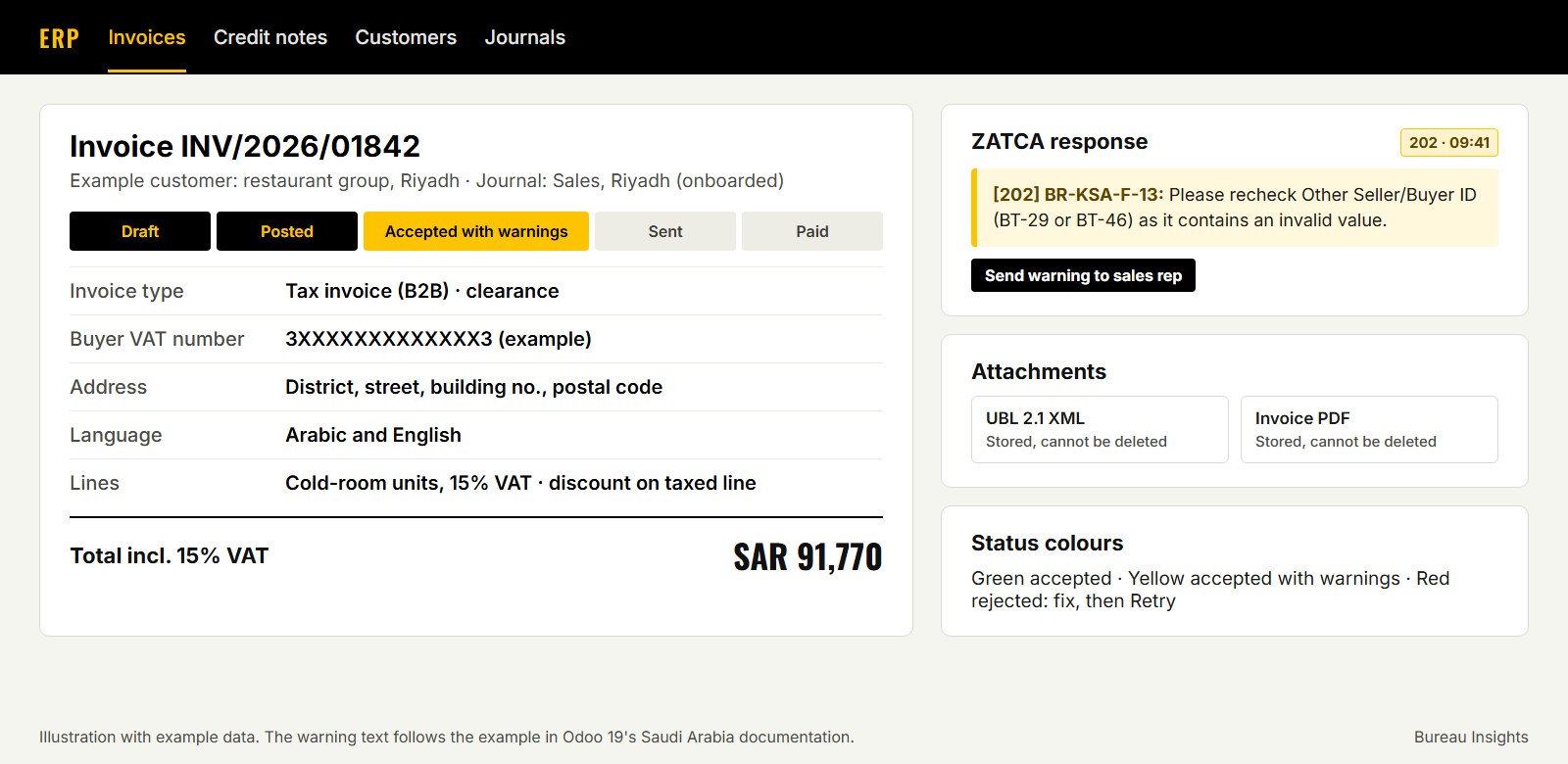
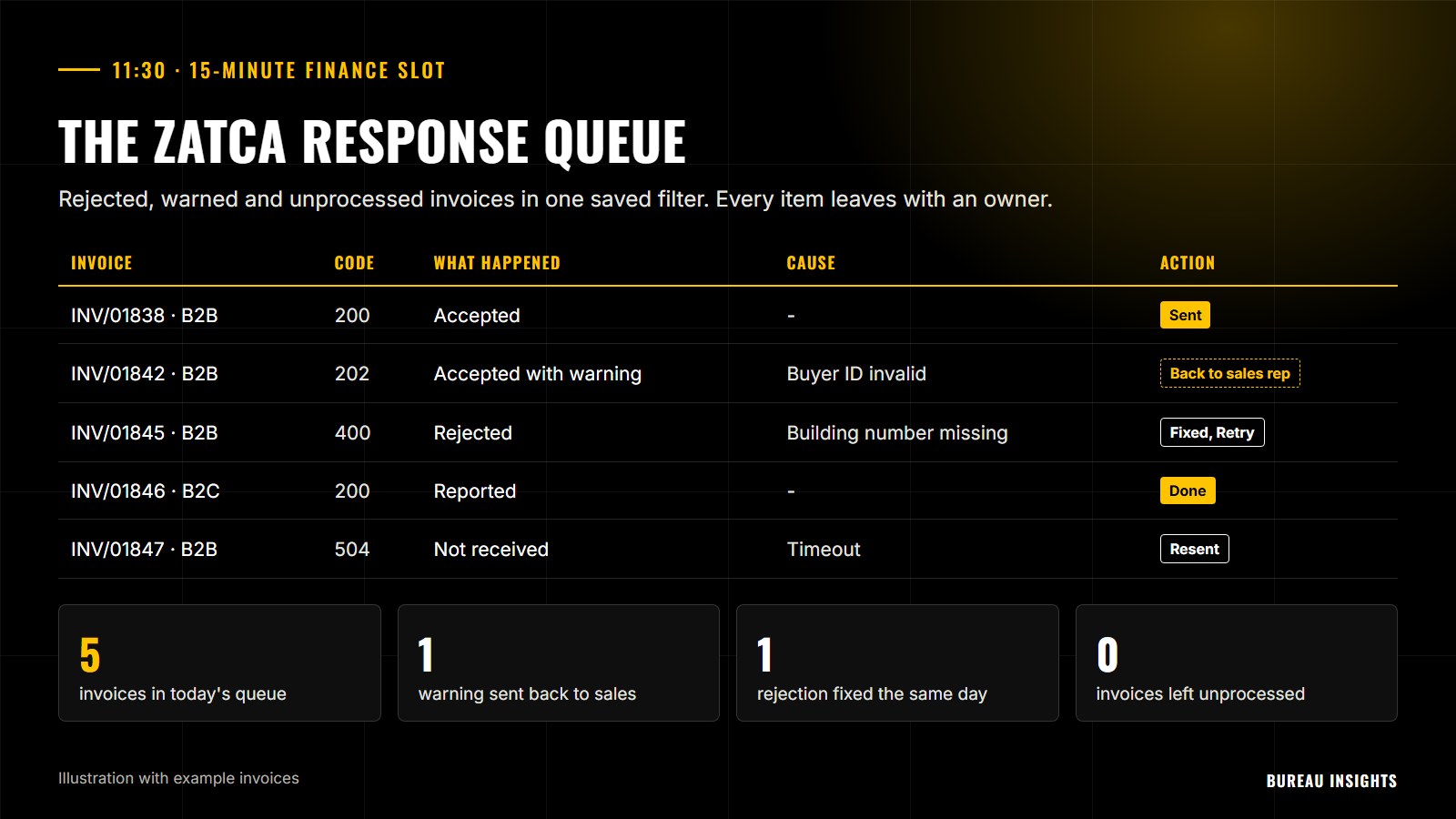
We give one person in finance a fixed 15-minute slot, usually late morning and again before close, with a saved filter for invoices that are rejected, accepted with warnings, or confirmed but not yet processed. The response code decides the action:
| Code | Meaning | What to do | Who |
|---|---|---|---|
| 200 | Accepted | Nothing. Send the invoice. | - |
| 202 | Accepted with warnings | Invoice is valid. Fix the cause, usually a customer field, so the next one is clean; share recurring warnings with your solution provider. | Accountant, then sales rep for customer data |
| 303 | Clearance switched off | Submit through the reporting flow instead. | Accountant |
| 400 | Rejected | Read the error, correct the invoice or settings, click Retry. Not legally valid until accepted. | Accountant |
| 401 | Unauthorised | Check the certificate and credentials of the onboarded journal. | Odoo administrator |
| 413, 429, 500, 503, 504 | Not received | Resend; reduce the payload for 413. | Accountant |
Take warnings seriously. Odoo's documentation notes that warnings are accepted for now but may become rejections, and that frequent warnings can lead ZATCA to investigate or audit. A warning that comes from customer data is a sales process problem, so send it back to the rep who created the customer.
A worked example: one B2B order from quote to cleared invoice
Take a distributor in Riyadh selling cold-room equipment to a restaurant group. The names and amounts are examples; the flow is the one we configure.
- Day 1, 10:15 The rep qualifies the deal in Bitrix24. Moving it to "Quote sent" is blocked until the company card has a VAT number, CR number, district and building number. The rep asks the customer's procurement contact for the CR certificate on WhatsApp and fills the fields.
- Day 1, 11:00 The quotation for SAR 84,000 plus 15% VAT goes out with a 5% project discount on a taxed line.
- Day 4, 16:30 The deal is won. The integration creates the customer and the sales order in Odoo with the same fields; nobody re-types the address.
- Day 9, 09:40 After delivery, the accountant confirms the invoice in the Riyadh sales journal and clicks Process now.
- Day 9, 09:41 Response 202: accepted with a warning on the buyer's other ID. The invoice is valid and goes to the customer. In the 11:30 slot, the accountant sends the warning to the rep, who corrects the identification scheme on the customer card.
- Day 15 One unit is returned. The accountant issues a credit note with the reason "Goods or services refund". It is cleared like the invoice.
The point is when each check happens. The customer data was fixed on day 1 by the person who talks to the customer, so finance on day 9 dealt with one warning instead of a rejected invoice and a delayed payment.
Mistakes we keep seeing
- Going straight to Production. Simulation on a copy of the live database is where real discounts, retention and credit notes show their problems. Production has no way back.
- Customer data owned by finance. If only the accountant can fix a VAT number, every warning becomes a phone call to sales. Make the fields required in the CRM.
- Ignoring 202s. Accepted with warnings is still accepted, so it gets ignored. The same warning on fifty invoices is a pattern ZATCA can see.
- Forgetting extra journals. Each sales journal is onboarded separately. A new branch journal created in a hurry at month end will not clear until it is onboarded.
- Editing instead of crediting. Teams used to resetting invoices to draft need training before go-live. In Production, corrections are credit and debit notes with a reason.
The same principle runs through our hour-by-hour CRM routine, where the 14:00 quote handoff is the step that feeds this flow, and through why the process comes before the platform.
Frequently asked questions
Who is in ZATCA wave 25 of e-invoicing?
According to ZATCA's announcement of 24 July 2026, wave 25 includes all taxpayers whose revenues subject to VAT exceeded SAR 187,500 in 2022, 2023, 2024 or 2025. ZATCA notifies each targeted taxpayer directly, and integration with Fatoora is due by 1 February 2027.
Does Odoo support ZATCA Phase 2?
Yes. Odoo's Saudi localisation includes the Saudi Arabia - E-invoicing module (l10n_sa_edi) for the Phase 2 API integration, and a simplified e-invoicing module for Point of Sale. Each sales journal is onboarded on Fatoora with an OTP.
What is the difference between clearance and reporting?
Clearance applies to B2B tax invoices: the invoice is sent to ZATCA and must be accepted before it is valid. Reporting applies to B2C simplified tax invoices: the invoice is issued with a QR code and then reported to Fatoora.
Can we keep Bitrix24 as our CRM with ZATCA e-invoicing?
Yes, as long as the tax invoice is issued from a solution integrated with Fatoora, such as Odoo Accounting, and the customer's VAT number, CR number and address move from Bitrix24 to the ERP without re-typing. Make those fields required before the quote stage.
What should we do with an invoice accepted with warnings?
The invoice is legally valid and can be sent. Fix the cause before the next invoice, because Odoo's documentation notes that warnings may become rejections later and frequent warnings can lead ZATCA to investigate.
Sources
- ZATCA, ZATCA Determines the Criteria for Selecting the Targeted Taxpayers in Wave 25 for "Integration Phase" of E-invoicing, 24 July 2026.
- ZATCA, Roll-out phases, last updated 1 September 2026.
- ZATCA, What is E-invoicing?, accessed 26 November 2026.
- Odoo 19 documentation, Saudi Arabia (fiscal localisation), accessed 26 November 2026.
Is your company in wave 25? We set up Odoo for ZATCA Phase 2, connect it to Bitrix24 or your existing CRM, and train sales and finance on the daily routine before go-live. Book a free consultation or see how we connect CRM and ERP.